
Demo Application
Use the C# Communications REST v2 Demo Application to see how to integrate with and call the CalcTaxes and Geo Batch REST v2 APIs.
Download the Demo Application
- Navigate to the Avalara/Communications-Developer-Content repo on GitHub
- Clone the master branch of the Avalara/Communications-Developer-Content repository locally
- To run the application:
- Navigate to .\afc_saaspro_tax\afc_rest_apis\AfcRestDemoApp in the local repository
- Launch RestDemoApplication.exe
- To view the source code and build the application:
- Navigate to .\afc_saaspro_tax\afc_rest_apis\AfcRestDemoSource in the local repository
- Open RestDemoApplication.sln in Microsoft Visual Studio
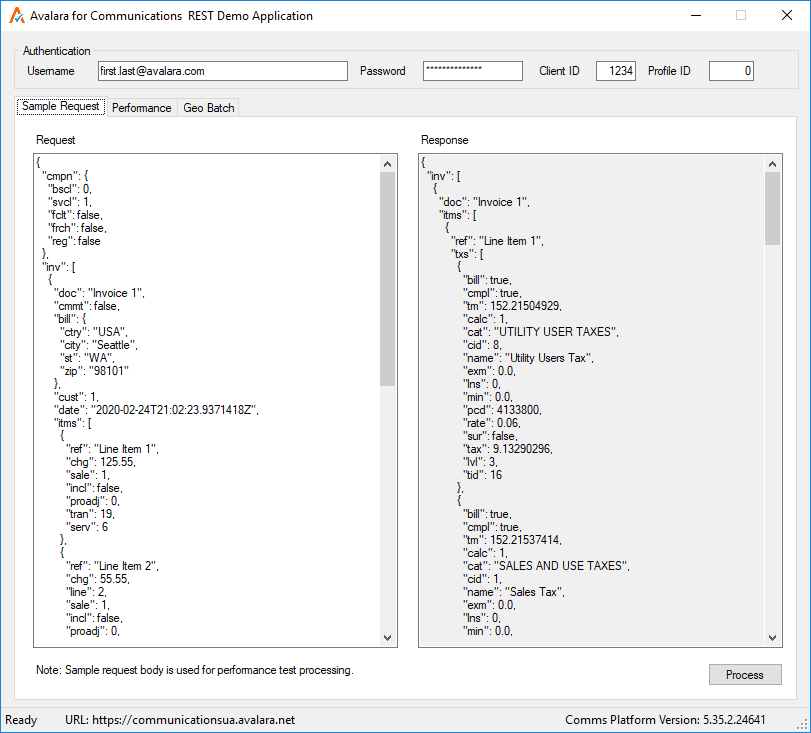
Run a Sample Transaction
- Enter your REST v2 Username, Password, and Client ID
- In Profile ID, enter:
client_profile_idto use an existing client profile (if applicable)0to use the default profile
- Modify the Request or simply use the transaction provided
- See Customizing Transactions for sample transactions
- Click Process to run the transaction
Run a Performance Test
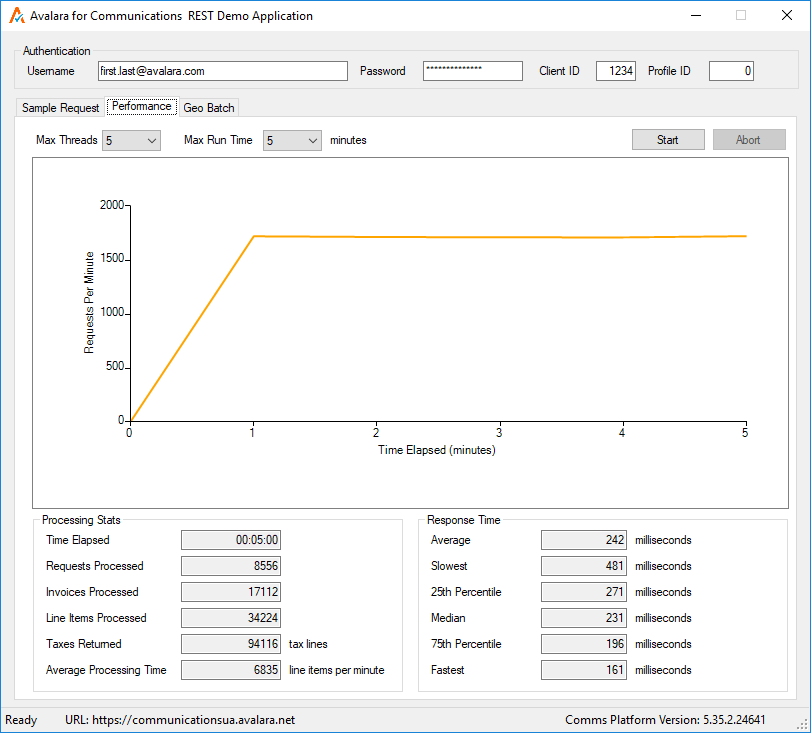
- Navigate to the Performance tab
- Set Max Threads and Max Run Time
- Click Start to start a performance test
The results of the test are displayed within the Performance tab.
Run Geo Batch
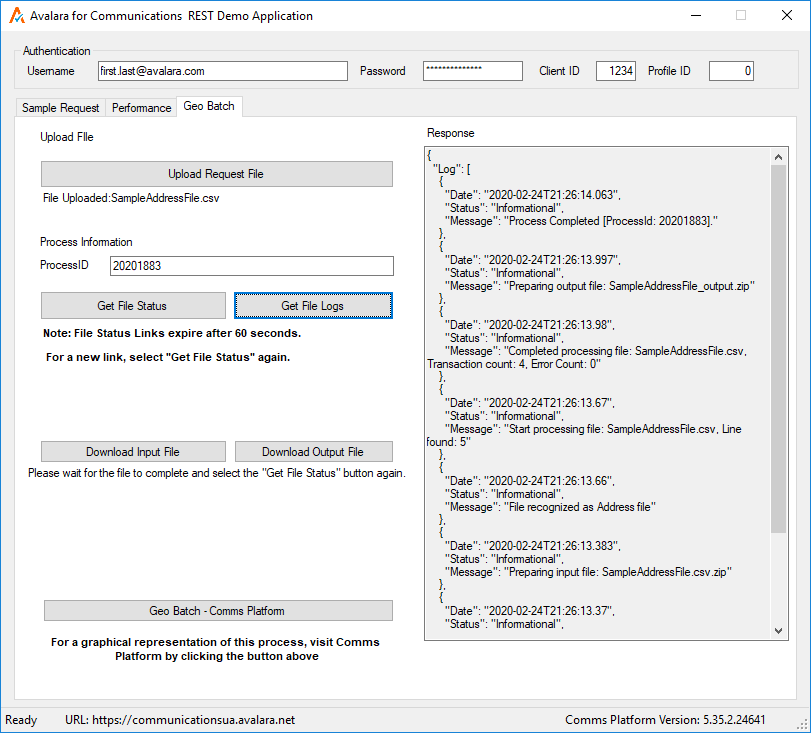
Use the Geo Batch tab to upload an address or latitude/longitude CSV file and see the results.
- Upload Request File - upload a CSV input file
- Get File Status - Get the input and output file links
- Download Input File - Download the request file
- Download Output File - Download the results file
- Get File Logs - See the status details of the request
For more information about Geo Batch, see Geo Batch.
The results of the Geo Batch test are displayed within the Geo Batchtab.
Part of the Communications REST v2 Developer Guide integration guide. Open the full “Demo Application” milestone on Avalara to see every page in this section.